
Plain Text Converter: Remove Formatting and Hidden Characters
Strip every trace of styling from copied words with this free plain text converter: one press, no account. Paste from Word, Google Docs, a web page or a PDF and get clean, unformatted text: smart quotes straightened, odd spaces and invisible characters removed, HTML tags and Markdown symbols stripped, and blank lines tidied, ready to paste anywhere.
- ¶ one-click text cleaner
- 👁 hidden character inspector
- 📋 rich paste box for Word and web
- 6 plain text formats
The plain result is placed in the main box above, where you can copy or clean it further.
| Character type | Found |
|---|
Your text as plain text
Know someone who fights with copy-paste formatting?
Share this free plain text converter.
Messy Text From Documents, Web Pages and Code, Cleaned
Common copy-paste problems shown after cleaning. Copy takes the clean version; Edit in tool restores the messy version, curly quotes and invisible marks included.
What Is a Plain Text Converter?
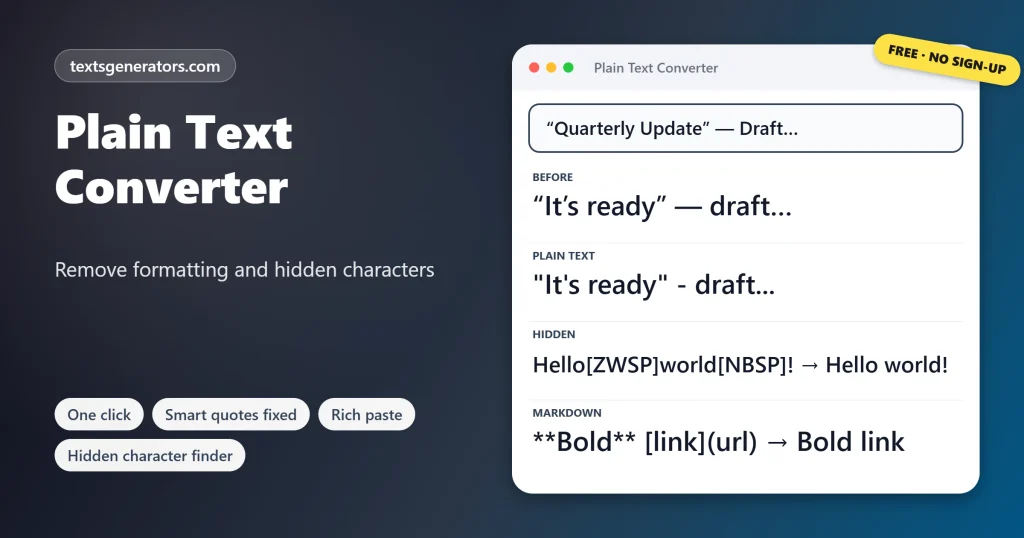
Quick answer: A plain text converter strips formatting from copied text so only ordinary characters remain: no fonts, colours, bold, links, or hidden codes. It also swaps look-alike characters such as curly quotes and long dashes for their simple keyboard versions, so “It’s ready” — draft becomes “It’s ready” – draft.
Plain text means characters only, the kind stored in a .txt file, as opposed to rich text, which also carries styling.
Copying from Word, Google Docs, websites and PDFs brings unwanted baggage: fonts and spacing that clash with your page, non-breaking spaces that stop searches matching, zero-width characters that break usernames and passwords, and curly quotes that crash code and CSV imports. Pasting into the box above already removes fonts and colours. The toolbar then clears the invisible extras, the Rich Paste Box converts formatted content while keeping its structure, and the inspector shows exactly which hidden characters were in your text.
- 7 Clean-up options
- 12 Hidden character types detected
- 2 Markup strippers: HTML and Markdown
- 6 Plain text formats
How Do You Remove Formatting From Text?
- Paste it in: Into the main box, or the Rich Paste Box to keep bullets and links.
- Pick the clean-ups: Quotes, dashes, spaces, hidden characters, blank lines, emoji.
- Press Clean text: The note confirms when no hidden characters remain.
- Paste it anywhere: Your CMS, email, form, spreadsheet, or code editor.
Text copied from a PDF breaks mid-sentence? Join it with the remove line breaks tool.
Which Hidden Characters Cause Problems?
| Character | Where it comes from | What it breaks |
| Non-breaking space | Word, web pages, PDFs | Search and replace, spreadsheet formulas, code |
| Zero-width space or joiner | Websites, chat apps, copied usernames | Passwords, logins, URL slugs, duplicate checks |
| Byte order mark | Files saved by some editors | The first column of CSV files, scripts |
| Soft hyphen | Justified text in documents | Search, spell check, word counts |
| Curly quotes | Word processors and phones | Code, JSON, CSV, command lines |
| En and em dashes | Autocorrect replacing — | Command-line options, product codes |
| Tabs and double spaces | Spreadsheets and old documents | Alignment and comparisons |
For deeper spacing fixes, try the remove extra spaces tool.
How Do You Remove Formatting in Word and Google Docs?
| App | Clear formatting | Paste without formatting |
| Microsoft Word | Home tab, Clear All Formatting button, or Ctrl + Space for characters and Ctrl + Q for paragraphs | Paste Options, Keep Text Only |
| Google Docs | Format, Clear formatting, or Ctrl + \ | Ctrl + Shift + V |
| Chrome, Edge and most web apps | Not available | Ctrl + Shift + V |
| Mac apps such as Pages and Mail | Format menu options vary | Option + Shift + Cmd + V (Paste and Match Style) |
| Outlook | Format Text, Clear All Formatting | Paste Options, Keep Text Only |
These shortcuts remove fonts and colours, but most of them keep non-breaking spaces, zero-width characters and curly quotes. Run the text through the cleaner when it is going into code, a spreadsheet, a form or a search box.
What Is the Difference Between Plain Text and Rich Text?
Rich text stores characters together with styling: fonts, sizes, colours, bold, italics, links, lists and tables. Word documents, emails and web pages are rich text. Plain text stores characters only, which makes it universal: any program, from a code editor to a text message, reads it the same way. Converting rich text to plain text loses the styling but keeps the words, and the Rich Paste Box keeps the structure as simple markers, turning list items into dashes or numbers and table cells into tab-separated columns.
When Should You Convert Text to Plain Text?
- Publishing: paste articles into WordPress without stray styles and spans.
- Email: send text that looks the same in every inbox.
- Forms and logins: remove hidden characters that make input fail.
- Coding: fix curly quotes and dashes copied from documentation.
- Spreadsheets: clean cells so formulas and lookups match.
- AI and translation tools: feed them clean, consistent input.
Plain Text Terms
Plain text
Characters with no styling information.
Rich text
Text stored with fonts, colours, links and layout.
Non-breaking space
A space that stops a line from breaking, often invisible trouble in searches.
Zero-width space
A character with no width that hides between letters.
Smart quotes
Curly typographic quotes that replace straight ‘ and “.
Markdown
A light markup using symbols like ** and # for formatting.
Swap specific words across the cleaned text with the find and replace tool.
What Can This Text Cleaner Do?
One-click clean
Seven switchable fixes.
Basic characters
Accents and symbols simplified.
Markdown
Headings, bold, and links stripped.
HTML
Tags removed, lines kept.
Rich paste
Bullets, links, and tables kept.
Inspector
Every hidden character marked.
A login or search keeps failing on copied text?
Check it for invisible characters and remove them in one press.
Formatting Still Showing After Pasting?
| Problem | Cause | Fix |
| Bullets disappeared | The text was pasted into the plain box | Use the Rich Paste Box with Keep bullets ticked |
| Emoji were removed | Remove emoji or Plain ASCII only was used | Untick Remove emoji and press Clean text again |
| Accents vanished | Plain ASCII only converts é to e | Use Clean text instead |
| Paragraphs merged | Join into one paragraph was pressed | Press Undo |
| Underscores in names were removed | Remove Markdown treats _text_ as italics | Only strip Markdown from real Markdown text |
Curious about invisible characters? The invisible text generator explains and creates them.
Tips for Clean Copy and Paste
Learn one shortcut
Ctrl + Shift + V pastes without formatting in most browsers and web apps.
Clean before code
Always straighten quotes before pasting into a terminal or config file.
Check copied passwords
A hidden space at the end is the most common reason they fail.
Keep a clean master
Write drafts in plain text and add formatting in the final tool.
After cleaning, change the capitalization with the case converter.
Plain Text Converter FAQ
What is a plain text converter?
A tool that strips styling and hidden codes from copied text, leaving only simple characters.
How do I remove formatting from text?
Drop it in the main box, then hit Clean text. Fonts vanish as you paste, and the toolbar deletes leftover invisible marks.
What is plain text?
Characters only, with no fonts, colours, links, or layout, like the contents of a .txt file.
Why does copied text keep its formatting?
Programs copy rich text along with plain text, and many editors paste the rich version by default.
How do I paste without formatting?
Use Ctrl + Shift + V in most browsers and Google Docs, or Paste Options, Keep Text Only in Word.
How do I remove formatting in Word?
Select the text and press the Clear All Formatting button on the Home tab, or Ctrl + Space and Ctrl + Q.
How do I clear formatting in Google Docs?
Select the text and choose Format, Clear formatting, or press Ctrl + Backslash.
What are hidden characters?
Characters you cannot see, such as zero-width spaces, non-breaking spaces, and soft hyphens.
Which invisible characters does the inspector detect?
Twelve kinds, including zero-width joiners, non-breaking and special spaces, soft hyphens, tabs, curly quotes, and trailing spaces, each counted and highlighted in yellow.
Why does my password fail when I paste it?
Copied text often carries a hidden space or zero-width character; clean it before pasting.
What are smart quotes and why remove them?
Curly quotes that word processors insert. Code, JSON, and CSV need straight quotes instead.
Can I keep bullet points when removing formatting?
Yes. Paste into the Rich Paste Box with Keep bullets and numbers ticked.
Can I keep links as text?
Yes. Tick Keep link addresses in brackets in the Rich Paste Box.
How do I remove HTML tags from text?
Press Remove HTML tags; tags go, line breaks stay, and common entities are decoded.
How do I remove Markdown symbols?
Press Remove Markdown to drop heading marks, asterisks, link brackets, and list markers.
What does Plain ASCII only do?
It keeps basic English keyboard characters, turning accented letters into plain ones and dropping symbols and emoji.
Can I remove emoji from text?
Yes. Tick Remove emoji, or use the Without Emoji card.
Does cleaning change my words?
No. Only spacing, punctuation look-alikes, and invisible characters change, unless you choose ASCII mode.
Is the plain text converter free?
Yes. Cleaning, rich paste, and the inspector are free, with no account.
Is my text uploaded?
No. Everything is cleaned inside your browser.
Can I clean text on mobile?
Yes. Paste, clean, and copy all work on mobile, though the rich paste box behaves best on a computer.
Convert to Plain Text
Rich → plain
No fonts, no hidden characters, no curly quotes. ¶ Clean My Text
- Alphabetical Order Tool: Sort Lists A to Z Online
- camelCase Converter: Turn Words and Names Into camelCase
- Capitalize the First Letter of Each Word, Sentence, or Line
- Case Converter: Change Text to UPPERCASE, lowercase, or Title Case
- Find and Replace Text Online: Swap Words in Seconds
- Lowercase Converter: Change CAPS to Small Letters
- Minecraft Color Codes and Colored Text Generator
- Number-to-Words Converter: Amount in Words for Cheques
- PascalCase Converter: Class, Type and Component Names
- Remove Duplicate Lines: Delete Repeated Lines and List Items
- Remove Extra Spaces: Delete Double Spaces and Fix Spacing
- Remove Line Breaks: Fix Broken Lines From PDFs and Emails
- Roman Numeral Converter: Numbers and Dates to Roman
- Sentence Case Converter: Turn Any Text Into Proper Sentences
- Snake Case Converter: Words and camelCase to snake_case
- Text Repeater: Repeat Text, Words and Emoji Up to 10,000 Times
- Title Case Converter: Capitalize Titles in AP, APA, Chicago, and MLA Style
- Toggle Case Converter: Invert Capitals and Fix Caps Lock Text
- Uppercase Converter: Change Lowercase to Capital Letters
- URL Slug Generator: Turn Titles Into SEO-Friendly Slugs
- Word Combiner: Mix Words and Keyword Lists Into Every Combination
No tools match your search. Try another word or choose "All tools".