LinkedIn Bold Text Generator 𝗕𝗼𝗹𝗱, 𝘪𝘵𝘢𝘭𝘪𝘤 and 𝐦𝐨𝐫𝐞
LinkedIn has no bold button for posts, so this tool writes bold, italic and underlined letters you can paste straight in. Select words in the post editor to style only those, preview where “…see more” cuts your hook, format your headline and About section against LinkedIn’s limits, and turn styled text back to normal for résumés.
- 30+ LinkedIn-ready styles
- Select-to-bold post editor
- “See more” preview
- Unbold converter for CVs
All LinkedIn text styles
Your team posts on LinkedIn too?
Share this generator with colleagues who want hooks that stop the scroll.
LinkedIn Hooks, Career News, Hiring Posts and Closing Lines
Opening hooks, announcement lines, recruitment headers and engagement closers with bold already applied. Copy hands over the line unchanged; Edit in tool lets you try the same sentence in serif, italic or monospace.
What Is a LinkedIn Bold Text Generator?
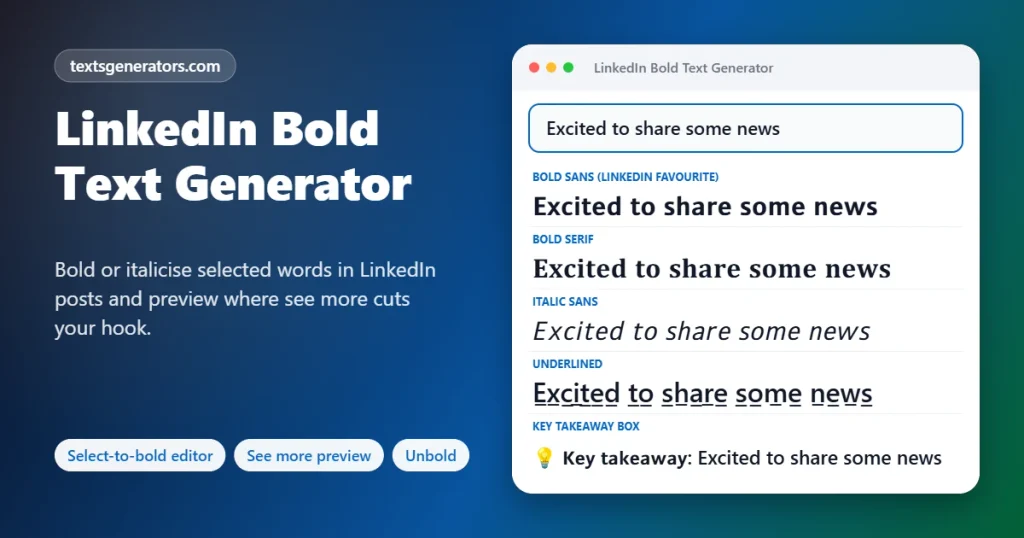
This generator swaps your normal letters for heavy, slanted, underlined, or typewriter-style Unicode look-alikes, so a LinkedIn post, comment, headline, or About section appears formatted after you paste it.
LinkedIn’s post composer offers no text formatting at all: no bold, no italics, no headings. Yet bold hooks and section titles make long posts easier to scan, which is why so many creators use them. The workaround is Unicode’s mathematical alphabets, sets of letters that are bold or italic by design. The platform stores them as ordinary characters, which is why the styling survives publishing.
This page is built around how people actually write on LinkedIn. The post editor lets you select a phrase and bold just that part, then shows where the feed will cut your post with “…see more”. The profile formatter respects the headline, Experience, and About limits, and the unbold converter restores plain text for CVs and applicant tracking systems.
- 9 Editor buttons
- 3,000 Post limit tracked
- 220 Headline limit tracked
How to Bold Text in a LinkedIn Post
- Draft in the post editor: Write or paste your post into the editor panel.
- Select and style: Highlight a phrase and press Bold, Italic, Underline, or Strike; press Normal to undo.
- Check the fold: The preview shows what readers see before tapping “…see more” on desktop or mobile.
- Copy and publish: Press Copy post, open LinkedIn’s Start a post box, and paste.
Where You Can Use Bold Text on LinkedIn
| Place | Styled text works? | Limit |
| Posts | ✅ Yes | 3,000 characters |
| Comments | ✅ Yes | 1,250 characters |
| Headline | ✅ Yes, use sparingly | 220 characters |
| About section | ✅ Yes | 2,600 characters |
| Experience descriptions | ✅ Yes | 2,000 characters |
| Name field | ⚠ Often rejected | Real name policy |
| Articles and newsletters | Not needed | The article editor has real bold |
Bold Text, LinkedIn Search and Accessibility
Unicode bold letters are different characters from normal ones. LinkedIn search, recruiters’ keyword filters, and screen readers may not recognise 𝗣𝘆𝘁𝗵𝗼𝗻 as Python. That has three practical consequences:
- Never put skills or job titles you want to be found for only in bold; repeat them in plain text.
- Keep bold to hooks and short headings, so most of the post stays readable for assistive technology.
- Before copying a post into a CV or job application, run it through the Unbold Converter.
- Hashtags written in bold do not work as hashtags, so leave them plain.
LinkedIn Formatting Features
Select-to-style
Bold or italicise only the words you highlight.
Fold preview
Desktop and mobile “…see more” positions.
Hashtag counter
Warns when you use more than five.
Profile formatter
Headline, Experience and About with limits.
Unbold converter
Restores normal letters for CVs.
List layouts
Checkmarks, arrows, bold or keycap numbers.
LinkedIn limits
Post, comment, headline and hook presets.
Favourite styles
Keep your house style one click away.
Private drafts
Your post never leaves this browser tab.
Polishing your profile?
Format your headline and Experience bullets within LinkedIn’s limits.
Tips for Formatting LinkedIn Posts
1. Bold the hook only
The first line decides whether people tap “see more”; bold it and keep it under two lines.
2. Use white space
Short paragraphs separated by blank lines read better on phones than any font.
3. Italicise quotes
Italicise testimonials and inner thoughts without shouting.
4. Bold numbers in results
Highlighting “40%” or “3x” draws the eye to proof.
5. Do not bold whole posts
It doubles the character count and tires readers.
6. Finish with a question
A short italic question at the end invites comments.
LinkedIn Bold Text Problems
| Problem | Why | Fix |
| The post hits 3,000 too soon | Each styled letter counts double | Bold fewer words |
| Underline looks broken on Android | Combining lines render poorly in some fonts | Use bold or italic instead |
| Recruiters cannot find my skills | Search ignores Unicode look-alike letters | Write skills in plain text too |
| Bold hashtags are not clickable | Hashtags need normal letters | Keep hashtags plain |
| The preview cuts in a different place | LinkedIn adjusts the fold by screen width | Keep the hook within the mobile preview |
| My CV shows strange symbols | The CV font lacks math letters | Paste through the Unbold Converter first |
This Tool Versus Basic Bold Converters
| Feature | This page | Basic converters |
| Bold only selected words | ✅ Post editor | Whole text only |
| “See more” preview | ✅ Desktop and mobile | ❌ |
| Profile limits | ✅ Headline, About, Experience | ❌ |
| Unbold for CVs | ✅ | Rarely |
| Search and accessibility advice | ✅ | ❌ |
| Hashtag check | ✅ | ❌ |
LinkedIn Bold Text: Common Questions
Is there a way to write in bold on a LinkedIn post?
LinkedIn posts have no bold button. Write your post in the editor here, select the words, press Bold, and paste the result into LinkedIn.
Is bold text allowed on LinkedIn?
Yes. The bold letters are standard Unicode characters, and LinkedIn displays them like any other text.
Can I bold just one word in my post?
Yes. Highlight that word in the Post Editor and press Bold; the rest of the post stays normal.
Does bold text hurt my LinkedIn reach?
There is no evidence that LinkedIn penalises it, but bold words are not matched by search, so keep important keywords in plain text.
Why can recruiters not find words I wrote in bold?
Search systems treat Unicode bold letters as different characters, so a bold skill name is not matched by a normal search.
How do I italicise text on LinkedIn?
Select words and press Italic in the editor, or copy the Italic Sans style from the results.
Can I underline text in a LinkedIn post?
Yes, with the Underline button or style. It adds a combining line under each letter, which some Android fonts display unevenly.
Where does LinkedIn cut my post with see more?
Usually after about three lines or roughly 210 characters on desktop, and sooner on mobile. The preview shows both.
Can I use bold in my LinkedIn headline?
Yes, but the headline is only 220 characters and bold letters count double, so bold one short phrase at most.
How do I format my About section?
Choose About in the Profile Section Formatter, put one idea per line, and copy the result, which stays within 2,600 characters.
Can I bold the bullet points in my Experience section?
Pick Experience bullets, tick Bold the first phrase, and each line starts with a bolded label followed by plain text.
Someone’s post is full of bold letters. How do I get normal text back?
Paste it into the Unbold Converter, which maps every styled letter back to its normal form.
Will bold text work in LinkedIn comments?
Yes. Comments accept the same styled letters, within the 1,250-character limit.
Do screen readers read LinkedIn bold text?
Many read each styled letter as a mathematical symbol or skip it, which is why bold works best for a few words only.
Why does my bold text look like boxes for some people?
Very old devices lack the math alphabet fonts. Current phones and computers display them correctly.
Can I use bold text in a LinkedIn article?
You do not need to: the article and newsletter editor has real bold, italic, and headings.
Should hashtags be bold?
No. Bold hashtags stop working as links, so keep them in normal letters at the end of the post.
How many hashtags should a LinkedIn post have?
Three to five relevant hashtags is a common recommendation. The editor counts them and warns above five.
Can I bold my name on LinkedIn?
LinkedIn’s name field usually rejects special characters under its real-name policy, so use bold in your headline instead.
Is my LinkedIn draft saved or sent anywhere?
No. Your draft exists only in this tab and is gone when you close it. Copy it before leaving.
Is the LinkedIn bold text generator free?
Yes. The styles, editor, profile formatter, and unbold converter are free with no sign-up.
Make Your LinkedIn Posts Easy to Scan
𝗕𝗼𝗹𝗱 𝗵𝗼𝗼𝗸𝘀. 𝘊𝘭𝘦𝘢𝘳 𝘴𝘵𝘳𝘶𝘤𝘵𝘶𝘳𝘦. 💼
Select-to-bold editing, fold preview, profile formatting, and unbolding, free. ✍ Open the Post Editor
- 3D Text Generator
- Aesthetic Text Generator
- Arrow Text Generator
- Big Text Generator
- Birthday Text Generator
- Bold Italic Text Generator
- Bold Text Generator
- Bracket and Boxed Text Generator
- Bubble Text Generator
- Calligraphy Text Generator
- Christmas Text Generator
- Clap Emoji Text Generator
- Cool Fonts Generator
- Copy and Paste Fonts
- Cursive Generator: Cursive Letters and Fonts
- Cute Fonts Generator
- Decorative Text Generator
- Discord Fonts Generator
- Diwali Text Generator
- Double Struck Text Generator
- Eid Text Generator
- Emoji Text Generator
- Fancy Text Generator
- Flag Text Generator
- Glitch Text Generator: Zalgo and Cursed Text
- Glow Text Generator
- Gothic Text Generator
- Halloween Text Generator
- Heart Text Generator
- Invisible Text Generator
- Italic Text Generator
- Love Text Generator
- Monospace Text Generator
- Neon Text Generator
- New Year Text Generator
- Old English Font Generator and Translator
- Serif And Sans Serif Text Generator
- Small Caps Generator
- Small Text Generator
- Square Text Generator
- Star Text Generator
- Strikethrough Text Generator
- Stylish Text Generator
- Subscript Text Generator
- Underline Text Generator
- Valentine’s Text Generator
- Vaporwave Text Generator
- Weird Text Generator
No tools match your search. Try another word or choose "All tools".